GearPix Plugin Documentation
This is the default view of a plugin instance, which is in Local mode.

This is the header of the plugin. Here you can:
- Switch mode
- Login and logout
- Change settings
Message

This message is displayed if the plugin can’t find a working internet connection or the GearPix servers are unreachable.
Switch mode
You can freely switch between modes except in those cases:
- The plugin is in Local mode and there is pictures added in the plugin instance. This prevent losing the pictures.
- The plugin is in Cloud mode and there is pictures from another user. The plugin instance is considered in read-only mode.
Login / Logout
Being logged in allows you to change project & track in Cloud mode. You don’t need to be logged in to add pictures in Local mode or just browser pictures in Cloud mode (if a project & track is already set).
Login
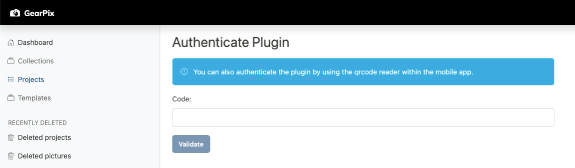
You can authenticate two ways:
In the mobile app
Go to User -> Authenticate Plugin.
You can then scan the QR Code or use the unique code.
On the website
Once logged, go to Plugin -> Authenticate and copy/pase the unique code.
Logout
To logout click on the email and select logout.
Settings
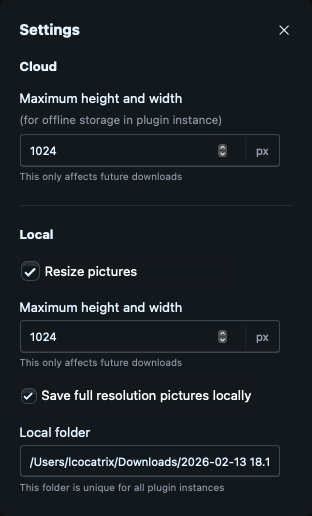
This dialog allows you to set the maximum dimensions for pictures saved inside the project file (and therefore the size of the DAW project file). You can select different sizes for Local and Picture modes.
Please note that changing dimensions only affect future pictures.
Why not saving them in the project folder?
A plugin can’t detect the project folder and therefore can’t set a backup automatically in it per project / plugin instance.